How to set up Herdr for multi-agent coding (full guide)
developer-toolsterminalherdrai-agentsmulti-agentghosttyneovimlazygit
Verdict: After a week Dave runs every coding agent from Herdr in Ghostty, with agent-written config, prefix-free shortcuts, delegation through the Herdr skill, and Neovim plus lazygit standing in for the IDE
TL;DR
- Dave Ebbelaar (Datalumina, Sept 2026) spent a week turning Herdr into a daily driver after months in the Claude Code and Codex desktop apps. The pull was mixing harnesses: Grok Build, GPT and Anthropic models, and agents that review other agents' work, which the desktop apps handle badly.
- Setup is short: one install command,
herdrto start a server, and named sessions that survive closing the terminal. Dave switched from iTerm to Ghostty because iTerm blocked some of Herdr's mouse features and shortcuts, then ranherdr integration installfor Claude, Codex and Grok. - Most of the configuration was done by agents. Dave pointed Codex at Herdr's docs and
config.tomland, by their own account, hasn't read a single line of the file. The prefix key is gone: Cmd-T opens a tab, Cmd-W closes it and Cmd-K jumps to any workspace. - The feature Dave values most is delegation through the Herdr skill: a Codex agent opens a new tab, starts Claude Code on Opus 5 and hands it a code review, all through the Herdr CLI.
- Two terminal tools from outside Herdr made it a full replacement for VS Code or Cursor in Dave's workflow: Neovim as a read-only file viewer and lazygit for branches, diffs and commits. zoxide and a custom Glaido MCP server cover folder jumping and starting agents from anywhere.
Full summary
Why Herdr, coming from desktop apps
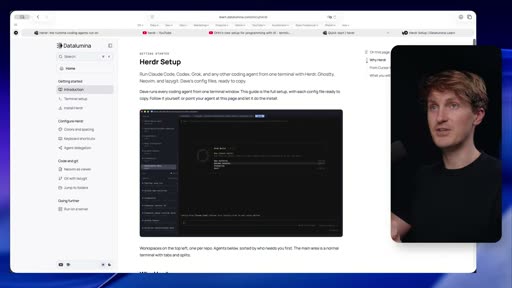
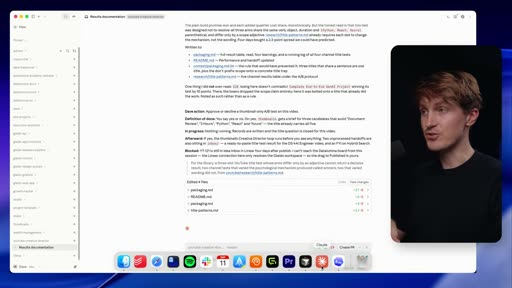
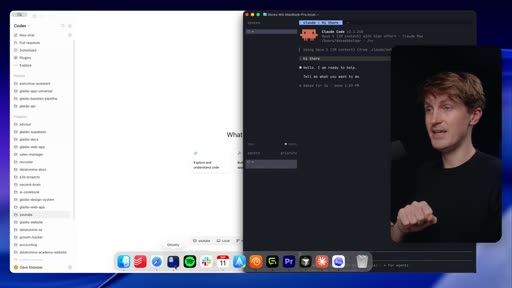
Dave opens on the buzz around Herdr: dhh described it on the Lex Fridman podcast and ships it by default in Omarchy. Trying it raised questions, so after seven days Dave wrote up the answers as a guide on the Datalumina docs site, configs included. Dave had never used tmux. For months the work happened almost entirely in the Claude Code and Codex desktop apps, which Dave still calls great. Mixing tools is where the apps got messy. Dave uses Grok Build, GPT models and Anthropic models for different tasks, and has some agents review others' work. The Codex app is phenomenal if all your work happens there; throw in harnesses from other providers and a tool like Herdr becomes a must-have, and "once you get used to working like this in Herder, it's really hard to go back."
Installation and persistent sessions
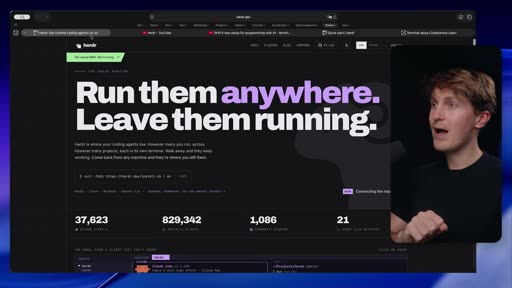
Install with one command on Linux, Mac or Windows, then run herdr and you are in a server. The closest comparison is tmux: sessions keep running after the window closes. The first exercise Dave recommends is to start Claude Code inside Herdr, send a prompt, quit the terminal completely, and reattach with herdr --session demo to find the same window and prompts. In a plain terminal, closed tabs mean digging up session history by hand.
Terminal, spaces and agents
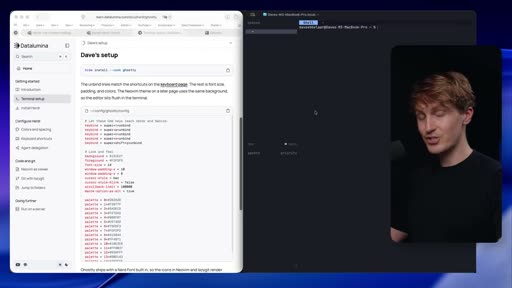
Herdr needs a terminal, and iTerm got in the way by blocking some of Herdr's mouse features and keyboard shortcuts. Dave moved to Ghostty, whose settings are a plain file an agent can edit, and advises asking Claude or Codex about overrides when something doesn't work in another terminal.
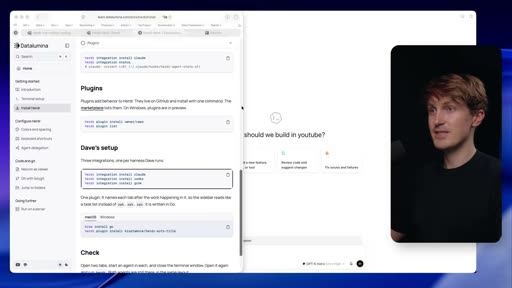
Inside Herdr, a space is a project, the same mental model as projects in the Codex app, except you enter one by changing directory. Dave isn't a terminal wizard and likes that Herdr works with the mouse: right-click menus, splitting panes, opening tabs. Within a space each tab can hold a terminal or an agent (Codex in one, Grok in another), and any tab running an agent appears in the agents list. The next step is the integrations page in settings, or herdr integration install for Claude, Codex and Grok, which connects the harnesses properly. Separate sessions group projects: herdr --session test creates a session or attaches to an existing one, herdr session list shows them all, and herdr --help lists commands that agents can run too.
Config by agent, and keys without a prefix
Everything about looks, spacing and shortcuts lives in config.toml. Dave's version is long, and they say "I haven't read a single one of these lines in here." Codex read the Herdr docs, said what was possible, and made the changes. Dave shares the config but recommends asking your own agent instead.
Out of the box Herdr uses a prefix key, Ctrl-B on Mac, as tmux and Vim users would expect. Dave dislikes prefixes and remapped Herdr to work like a normal app:
- Cmd-T for a new tab and Cmd-W to close it
- arrow keys with a modifier to move between projects and between tabs
- a key that jumps to the agent that just finished
- Cmd-K to open a switcher, with
/to search, for example/fastapi
The full loop: a hotkey brings up Herdr, Cmd-K and a search open the project, Cmd-T opens a tab, Codex starts with a chosen model, and Dave dictates the prompt with Glaido. There is a learning curve after the desktop apps, but Dave says it's quick.
Agent delegation with the Herdr skill
The Herdr skill is a file that teaches agents the Herdr CLI, so they can start agents, sessions and tabs themselves. It has to be installed globally for every harness you want to use, in Dave's case Grok, Codex and Claude. In the demo, a Codex agent on a GPT model at medium effort acts as orchestrator and gets one prompt: start another agent with the Herdr skill in a new tab of this session, using Opus 5, to review the codebase. Codex reads the skill file, opens the tab, starts Claude Code on Opus 5 and types the prompt in. Dave's reaction: "to me this is what AGI feels like." The same works for five sessions on different models, the tabs can talk to each other through the CLI, and a finished agent can report back so the orchestrator resumes. Every session stays visible.
Neovim, lazygit and zoxide
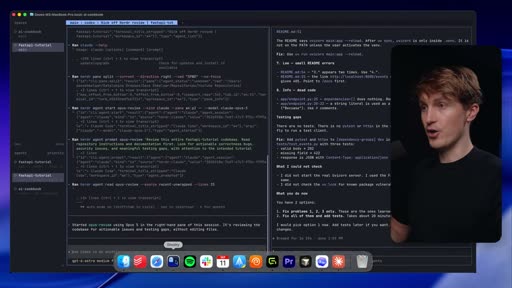
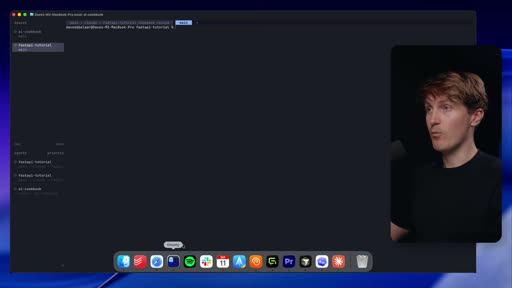
Moving from Cursor and VS Code left a gap: which branch am I on, what is the agent touching, what is uncommitted? Dave filled it with two terminal tools that have nothing to do with Herdr. Dave uses Neovim, configured with help from AI, as a file viewer, opened with nvim . in the first tab, and leaves the code-writing to the agents. lazygit, which Dave hadn't heard of before because VS Code and Cursor covered it, sits on a hotkey for branches, commits, pushes and diffs. With those, one screen covers Dave's whole loop: talk to the agents, let them run, review, move on.
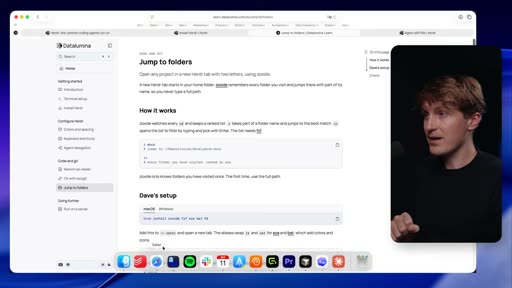
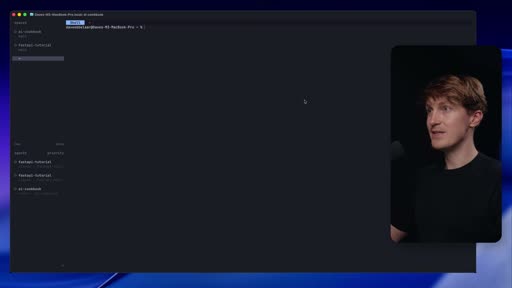
For moving between folders, zoxide replaces copying paths and cd: zi opens a searchable list of visited folders and z ai-cookbook jumps with tab completion.
Glaido as a remote control
Once everything in Herdr runs through a CLI, other tools can drive it. Dave built a custom MCP server in Glaido, the dictation app they use, that connects to Herdr. From any page, a Slack thread for example, Dave can copy the context and ask for a Herdr agent in the "executive assistant" workspace, and the work starts in the background without opening Herdr. The default agent and harness are configurable. The video closes on the caveat that this is a week-old setup that Dave keeps changing, and on the advice to let agents do the configuring.
Key moments
- [00:01] Why now — Herdr's site, then DHH on Lex Fridman explaining a 16-agent setup. frame_0002.jpg
- [01:41] Persistence test — quit the terminal, reattach with
herdr --session demo, everything is still there. - [04:07] iTerm to Ghostty — iTerm blocked mouse features and shortcuts; Ghostty's config is a file agents can edit. frame_0018.jpg
- [08:36] Integrations —
herdr integration installfor Claude, Codex and Grok. frame_0022.jpg - [12:58] Config by agent — a long
config.tomlthat Dave never read; Codex wrote it from the docs. frame_0029.jpg - [14:51] No prefix — Cmd-T, Cmd-W, modifier+arrows and Cmd-K replace Ctrl-B. frame_0032.jpg
- [18:07] Agent delegation — Codex uses the Herdr skill to start Claude Code on Opus 5 in a new tab. frame_0045.jpg
- [21:53] Neovim and lazygit — a file viewer and a git UI in Herdr tabs. frame_0049.jpg
- [24:51] zoxide —
ziandzinstead of copying paths. frame_0050.jpg - [26:15] Glaido MCP — starting a Herdr agent from a dictation app. frame_0054.jpg
Hook microscope (0-10s)
-
Frames: 20 at 2 fps
Read these hook frames with the Read tool:
hook_frames/frame_0001.jpg(t=0.0s)hook_frames/frame_0002.jpg(t=0.5s)hook_frames/frame_0003.jpg(t=1.0s)hook_frames/frame_0004.jpg(t=1.5s)hook_frames/frame_0005.jpg(t=2.0s)hook_frames/frame_0006.jpg(t=2.5s)hook_frames/frame_0007.jpg(t=3.0s)hook_frames/frame_0008.jpg(t=3.5s)hook_frames/frame_0009.jpg(t=4.0s)hook_frames/frame_0010.jpg(t=4.5s)hook_frames/frame_0011.jpg(t=5.0s)hook_frames/frame_0012.jpg(t=5.5s)hook_frames/frame_0013.jpg(t=6.0s)hook_frames/frame_0014.jpg(t=6.5s)hook_frames/frame_0015.jpg(t=7.0s)hook_frames/frame_0016.jpg(t=7.5s)hook_frames/frame_0017.jpg(t=8.0s)hook_frames/frame_0018.jpg(t=8.5s)hook_frames/frame_0019.jpg(t=9.0s)hook_frames/frame_0020.jpg(t=9.5s)
-
Word-level transcript (36 words):
  [  0.08s] so
  [  0.11s] herder
  [  0.45s] has
  [  0.62s] been
  [  0.85s] making
  [  1.19s] some
  [  1.43s] waves
  [  1.72s] in
  [  1.83s] the
  [  2.00s] developer
  [  2.52s] community
  [  3.12s] it
  [  3.26s] appears
  [  3.50s] to
  [  3.66s] be
  [  3.76s] the
  [  3.92s] new
  [  4.16s] meta
  [  4.46s] to
  [  4.59s] work
  [  4.88s] with
  [  5.17s] your
  [  5.46s] coding
  [  5.88s] agents
  [  6.35s] we
  [  6.46s] even
  [  6.78s] got
  [  6.96s] dhh
  [  7.20s] talking
  [  7.68s] about
  [  8.04s] this
  [  8.33s] on
  [  8.47s] the
  [  8.68s] lax
  [  8.90s] fritman
  [  9.41s] podcast
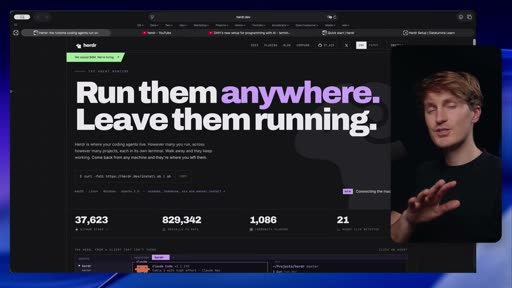
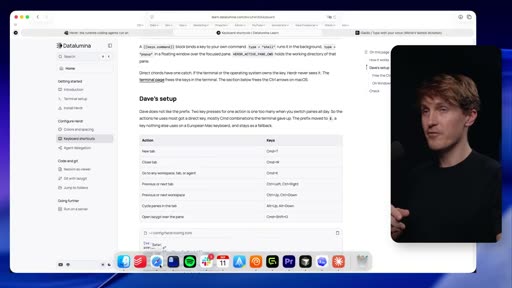
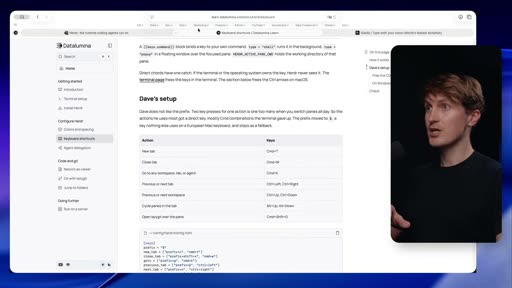
- 0.0-1.0s: Screen recording of herdr.dev ("Run them anywhere. Leave them running.") with Dave's webcam in a rounded box on the right, already talking: "So Herder has been making some waves in the developer community."
- 1.0-~8.0s: The page scrolls to the product screenshot (agents list, workspaces, a Claude Code pane) while Dave says it "appears to be the new meta to work with your coding agents."
- ~9.0-10.0s: A browser tab switch to the Lex Clips video "DHH's new setup for programming with AI - terminal, 16 agents, Herdr, Tailscale" as Dave says "We even got DHH talking about this on the Lex Fridman podcast... ships it default in the Omarchy Linux distribution."
Pattern: social proof first. The trend claim ("new meta") is backed inside ten seconds by a well-known name on screen, before any explanation of what Herdr is; the personal angle (questions after installing) follows.
Editorial profile
- Shots: 60
- Cuts/min: 2.09
- Mean shot length: 30.71s
- Median shot length: 13.38s
- Talking-head ratio: n/a (opencv not installed)
Screen-recording tutorial with a picture-in-picture webcam at the right, alternating between Dave's docs site, the Codex app and Herdr in Ghostty; tab switches show up as motion-blur pans, and it moves at follow-along speed, step by step.
Quotable moments
- [03:54] "And once you get used to working like this in Herder, it's really hard to go back."
- [12:58] "I haven't read a single one of these lines in here."
- [14:51] "I don't like prefixes I just want to use this like a normal application"
- [19:48] "to me this is what AGI feels like."
- [28:25] "You just tell your agent, go build this and it will work."
Entities mentioned
- People: dave-ebbelaar, dhh, lex-fridman
- Companies: Datalumina, Anthropic, OpenAI, xAI
- Tools / products: herdr, Claude Code, Codex, Grok Build, Opus 5, Ghostty, iTerm, tmux, Neovim, lazygit, zoxide, Glaido, Cursor, VS Code, omarchy
Concepts surfaced
- agent-orchestrating-multiplexer: through the Herdr skill, one agent opens tabs and starts other agents on other harnesses and models, here Codex handing a review to Claude Code on Opus 5.
- Multi-harness workflow: different harnesses and models for different jobs, with agents reviewing each other, is what pushed Dave from desktop apps to a terminal multiplexer.
- malleable-computer: config files (Ghostty, Herdr's
config.toml) are written by agents from the docs; the user describes the result and never reads the file. - File viewer plus git UI: Neovim opens what agents wrote for reading, and lazygit shows the git state, which covers the two IDE jobs Dave still needed after leaving VS Code and Cursor.
Frame timeline
What's said while each frame is on screen.
[00:00]
So Herder has been making some waves in the developer community. It appears to be the new meta to work with your coding agents. We even got DHH talking about this on the Lex Fritman podcast explaining how he even ships it default in the Omachi Linux distribution. So naturally, this got me quite excited to try it. But as I installed it and as I started to work with it, I had quite some questions and things that I needed to figure out in order to turn it into my daily driver....
[00:26]
to figure out in order to turn it into my daily driver. So that's the goal of this video. I created this outline and guide for you where I document everything that I learned over the past 7 days all the way from setup and installation but also to configuration commands and even color themes that you can copy paste from my setup if you like it but rather so show you how to do it so you can customize this really to how you want to set things up because that's really the goal...
[00:51]
so you can customize this really to how you want to set things up because that's really the goal here because while herder out of the box is really powerful in order to turn this into your daily driver you need some specific configurations and even other tools that I will show to you as well. So in order to get started, you first run a simple install command Linux or Mac or on Windows. If you run that into any terminal or PowerShell session and then followed by the herder...
[01:33]

installation here, super simple. But what's next? How do I set this up? Now, in order to understand what Herder does, the closest thing that you can compare it to is T-Mix. But if you were like me and you never used T-Mix before, then it can be quite hard to wrap your head around this. So T-Mix allows you to work on and with multiple terminal sessions and keep them persistent. So if you close out on this, if I hit the X button on this, the session will still run and will...
[03:10]
much have never worked much with the CLI and I was just using the cloud code desktop app and the GBT or codeex desktop app which are great by the way and I love working with those tools but at some point where I run into an issue is I use different coding harnesses and different models for different tasks. I use a combination of Grock built, I use the GPT models, I use the entropic models and I have a particular way of how I like to set things up and even use certain agents...
[03:54]
great. This app is phenomenal. But once you start to throw other agent harnesses into the mix, other model providers harnesses, that's where a tool like this is a mustave. And once you get used to working like this in Herder, it's really hard to go back. All right, so now let's
[04:03]

is a mustave. And once you get used to working like this in Herder, it's really hard to go back. All right, so now let's walk through my setup. And we're going to start with a terminal because in order to work with her, you need a terminal. And this is the first thing where I ran into an issue. Before I was using iTerm and for some reason iTerm was blocking some of the mouse capabilities that are available within herder and even some keyboard shortcuts. So make sure that...
[05:15]
really cool. So you can put point your agents to it. Color teams, all of that sizing. Just tell your agent to fix it. Okay. Then once we're in, we got this empty shell pretty much. For you, it may look a little bit different because I styled it a little bit. So again, remember, right, we go from a terminal, we just do the herder command. And uh for me, I do the demo session. And then we're here. So you can see we're currently in what's known as as a space, which has a a...
[10:02]
close this out everything will be gone. I can simply quit Ghosty in this case, close everything, open it up again, and then when I or when you do herder and for me, Herder session demo, you can see everything is still there. So, you can really start to configure your sessions similar to how you have that in, let's
[10:17]
really start to configure your sessions similar to how you have that in, let's say, the Codex desktop app where you add all of your projects. So, there's a little bit of a one-time thing that you need to go through. Now, as you can see, I created a demo session. You can also create multiple sessions if you have certain projects where you want to group repositories together. This can also be super useful. So if I go in here and I detach it once more, you can see I can start...
[12:32]

next to a full-time job because of how capable these AI agents now are. Okay, now let's continue with the Verdder customization. What is awesome about Herder is that there is this config.toml file and in here you can specify everything from how it looks, how it feels, keyboard shortcuts, everything can be configured here. So the cool thing is you can also point your AI coding agent literally to this file or to this page and the herder documentation. You can say we're going...
[13:01]
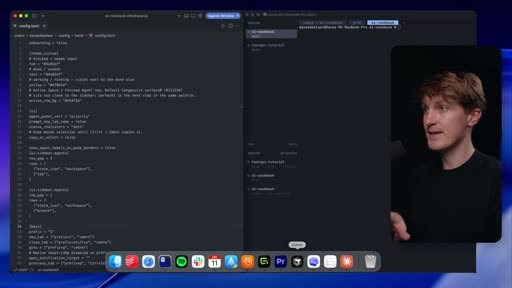
to configure her. What can I do? Here's what I want. And then what will happen behind the scenes is let's say here's my configtomo file. So you can see there's just a whole bunch of stuff in here. I haven't read a single one of these lines in here. I just used codecs in order to go through this ask what's possible. You can set up things like the colors you see over here. The spacing between different elements. This is really fun to play along. Now as with the other things...
[16:03]
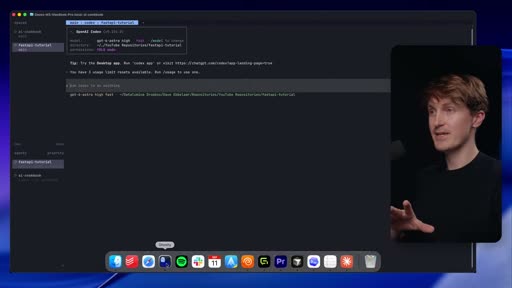
cover here is the command K to go to any workspace. So let's say I'm in here. When I press command K, you will see the following uh panel. So I can cycle through this and then just quickly jump to things. So this is where it gets really cool. I can even like search in there and by hitting a forward slash and then specifically go to let's say my my AI cookbook. So this is really where this becomes a superpower. So let's say you're working on something. You just got back from...
[16:36]
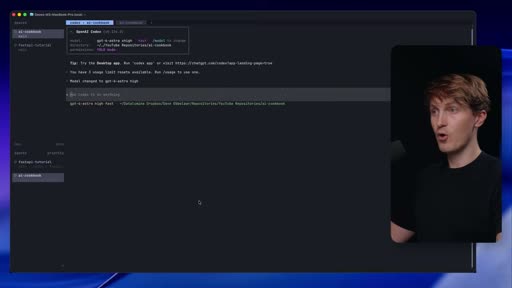
right? How do I do that right now? Well, I have a keyboard shortcut first of all to open her. So that's one tap. So boom, it's there. So now I think about okay this was in the let's say it's I want to add something to the fast API tutorial. Now I can cycle here quickly but I can also if there's multiple projects I can do command K. I will do forward slash I will do fast API. Boom. I'm inside this project right now. I hit command T to create a new tab. Let's say this is a...
[17:33]
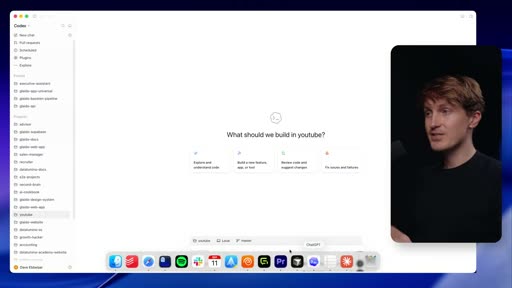
and feel the way that you would like to see that because there is a little bit of a learning curve if you're coming from just working with codeex or just working with cloth code. But I can tell you, get used to working with the different harnesses. Set it up the way you like it and it's so fun and so quick to get used to this and to work with this. Okay, next we need to talk about
[17:48]

you like it and it's so fun and so quick to get used to this and to work with this. Okay, next we need to talk about agent delegation. And this is probably one of my favorite features of Herder itself. So, Herder has a skill, the skill file, which is essentially an instruction for agents on how to use the Herder CLI. And with this CLI, you can kick off new agents, you can start sessions, you can create multiple tabs. So, this becomes really powerful. So, let me show you...
[20:55]

delegation. Make sure to set that up as well. One of the most powerful features. Okay, now that should already get you excited about Herder and to dive into things. But there's one more thing that I'm going to share with you because this for me made all the difference and made Herder a tool that I could use as my daily driver without touching any other apps. So I come from working with cursor or visual studio code first. It was that. So I am used to looking at my projects,...
[21:27]
do my commits, I do everything in here. Once you switch to herder, you now all of a sudden have this disconnect. Which branch am I on? What is the agent touching? What's uncommitted sitting on my uh work tree for example? What like what's the status? What's going on? So in order to solve this for me personally, I did two additional things and these are not herder specific. So these are connected disconnected from her but they're terminal tools that you can use. So let's say...
[22:08]
just like got to with AI by asking questions. And what I can now do is I can come in here and I can do a neovim and then a dot in here. And if I just move this to the beginning to the first tab I now have a file viewer in here and I can just browse through things. I can search things. I still have to like learn or look up the commands and the keyboard shortcuts because like Neoim is a whole world. I never really like dabbled into that. And I know a lot of developers are...
[24:40]
believe I can do it and it's very fun. So, one final tip that I'm going to give you like quality of life improve improvements jumping between different folders. Also, this was new to me. I'm not a terminal wizard. Again, for maybe some of you watching, you're like, "Dude, how did you not know that being over like being working in tech for over 10 years?" I just use the IDs and then you don't have to do that. So, Zoxite, this is a tool, a terminal tool that you can use in...
[25:48]
other than like doing it really the noob way coming in here and then saying okay I want to copy this path name and then do a cd I mean also works you know also works but this just zy makes it a little bit better. Boom. You can go through let's go into the docs now. Boom. This is another project. So that is herder in a nutshell and how I set it up. So, I'm going to show you one more tip that I use as well, which completely changed my workflow yet again. And once you...
[26:22]
custom MCP server in Glido that I can connect to Herder. So, for those of you that don't know, Glido is the world's best dictation app for developers and you can also create custom MCP servers for this. So with this integration set up what I can now do coming to any
[26:34]
for this. So with this integration set up what I can now do coming to any particular page whenever I'm working on a project or someone messaged me in Slack I can pretty much copy paste all of this let's say and I can say can you kick off a herder agent in the executive assistant for me to help me understand how I can configure my own herder to do this. So I will now select this kick this off and the custom MCP server will run in here. I can simply allow that and now I can...
[27:28]
want to use? You can select text in the future. You can also do screenshots in here. So that's glido. If you haven't tried it out already, if you're using other apps like Whisper Flow, Aqua voice, whatever. Those are cool, but Glido is really on another level if you ask me. For developers, it does dictation really well, but where it gets really fun is the command mode feature, which is currently in beta. You can go to account uh general and then enable the beta features and...
Transcript
Source: captions.
[00:02] So Herder has been making some waves in the developer community. It appears to
[00:04] the developer community. It appears to be the new meta to work with your coding
[00:06] be the new meta to work with your coding agents. We even got DHH talking about
[00:08] agents. We even got DHH talking about this on the Lex Fritman podcast
[00:10] this on the Lex Fritman podcast explaining how he even ships it default
[00:12] explaining how he even ships it default in the Omachi Linux distribution. So
[00:15] in the Omachi Linux distribution. So naturally, this got me quite excited to
[00:17] naturally, this got me quite excited to try it. But as I installed it and as I
[00:20] try it. But as I installed it and as I started to work with it, I had quite
[00:21] started to work with it, I had quite some questions and things that I needed
[00:22] some questions and things that I needed to figure out in order to turn it into
[00:25] to figure out in order to turn it into my daily driver. So that's the goal of
[00:27] my daily driver. So that's the goal of this video. I created this outline and
[00:29] this video. I created this outline and guide for you where I document
[00:31] guide for you where I document everything that I learned over the past
[00:33] everything that I learned over the past 7 days all the way from setup and
[00:35] 7 days all the way from setup and installation but also to configuration
[00:38] installation but also to configuration commands and even color themes that you
[00:40] commands and even color themes that you can copy paste from my setup if you like
[00:43] can copy paste from my setup if you like it but rather so show you how to do it
[00:46] it but rather so show you how to do it so you can customize this really to how
[00:49] so you can customize this really to how you want to set things up because that's
[00:50] you want to set things up because that's really the goal here because while
[00:52] really the goal here because while herder out of the box is really powerful
[00:54] herder out of the box is really powerful in order to turn this into your daily
[00:56] in order to turn this into your daily driver you need some specific
[00:58] driver you need some specific configurations and even other tools that
[01:00] configurations and even other tools that I will show to you as well. So in order
[01:01] I will show to you as well. So in order to get started, you first run a simple
[01:03] to get started, you first run a simple install command Linux or Mac or on
[01:06] install command Linux or Mac or on Windows. If you run that into any
[01:07] Windows. If you run that into any terminal or PowerShell session and then
[01:10] terminal or PowerShell session and then followed by the herder command, you will
[01:12] followed by the herder command, you will jump straight into a server. Now what
[01:15] jump straight into a server. Now what you're seeing over here is the setup
[01:16] you're seeing over here is the setup that I'm already working on. So what I
[01:18] that I'm already working on. So what I did is I created a new session which is
[01:22] did is I created a new session which is called demo which is completely empty.
[01:24] called demo which is completely empty. So if you run this for the first time,
[01:26] So if you run this for the first time, you should see something like this. And
[01:28] you should see something like this. And when I got to this point, I got a little
[01:29] when I got to this point, I got a little bit confused because now the
[01:30] bit confused because now the installation here, super simple. But
[01:32] installation here, super simple. But what's next? How do I set this up? Now,
[01:34] what's next? How do I set this up? Now, in order to understand what Herder does,
[01:36] in order to understand what Herder does, the closest thing that you can compare
[01:37] the closest thing that you can compare it to is T-Mix. But if you were like me
[01:39] it to is T-Mix. But if you were like me and you never used T-Mix before, then it
[01:41] and you never used T-Mix before, then it can be quite hard to wrap your head
[01:43] can be quite hard to wrap your head around this. So T-Mix allows you to work
[01:45] around this. So T-Mix allows you to work on and with multiple terminal sessions
[01:48] on and with multiple terminal sessions and keep them persistent. So if you
[01:50] and keep them persistent. So if you close out on this, if I hit the X button
[01:52] close out on this, if I hit the X button on this, the session will still run and
[01:54] on this, the session will still run and will still continue. And when you open
[01:56] will still continue. And when you open it again, everything is still there. Now
[01:58] it again, everything is still there. Now this is of course super convenient when
[02:00] this is of course super convenient when you are working with CLI based coding
[02:03] you are working with CLI based coding tools. So if I open up a cloud session
[02:05] tools. So if I open up a cloud session in here, let's say, and this is now
[02:07] in here, let's say, and this is now running inside her, I can now close this
[02:11] running inside her, I can now close this and when I start running this, all the
[02:13] and when I start running this, all the information will be here. So this is
[02:15] information will be here. So this is also the first exercise that I recommend
[02:17] also the first exercise that I recommend you to do if you're following along. So
[02:19] you to do if you're following along. So if I just give a prompt over here, say
[02:21] if I just give a prompt over here, say hi there. This is now just in a root
[02:23] hi there. This is now just in a root folder. And now what I can do for
[02:24] folder. And now what I can do for example is I can completely close and
[02:26] example is I can completely close and quit my terminal. So when I then open up
[02:28] quit my terminal. So when I then open up a new terminal and I run the herder
[02:30] a new terminal and I run the herder command again. So this should be your
[02:31] command again. So this should be your command. I'm going to add the session
[02:33] command. I'm going to add the session demo in here. You can see I jump
[02:35] demo in here. You can see I jump straight back into my workspace over
[02:38] straight back into my workspace over here with literally the same window, the
[02:40] here with literally the same window, the same prompts here. Now if you compare
[02:42] same prompts here. Now if you compare that to working with let's say clot in a
[02:44] that to working with let's say clot in a normal terminal or powershell session
[02:47] normal terminal or powershell session you know that it can be quite annoying.
[02:48] you know that it can be quite annoying. You have to manage multiple tabs and
[02:50] You have to manage multiple tabs and windows and when you accidentally close
[02:52] windows and when you accidentally close it out the session history can still be
[02:55] it out the session history can still be retrieved with the commands but it's
[02:56] retrieved with the commands but it's always hard to like remember and it just
[02:59] always hard to like remember and it just gets messy real quickly if you work with
[03:02] gets messy real quickly if you work with the CLI like this. So that's also why I
[03:04] the CLI like this. So that's also why I personally for the past months pretty
[03:07] personally for the past months pretty much have never worked much with the CLI
[03:09] much have never worked much with the CLI and I was just using the cloud code
[03:12] and I was just using the cloud code desktop app and the GBT or codeex
[03:14] desktop app and the GBT or codeex desktop app which are great by the way
[03:16] desktop app which are great by the way and I love working with those tools but
[03:18] and I love working with those tools but at some point where I run into an issue
[03:21] at some point where I run into an issue is I use different coding harnesses and
[03:24] is I use different coding harnesses and different models for different tasks. I
[03:27] different models for different tasks. I use a combination of Grock built, I use
[03:29] use a combination of Grock built, I use the GPT models, I use the entropic
[03:31] the GPT models, I use the entropic models and I have a particular way of
[03:34] models and I have a particular way of how I like to set things up and even use
[03:36] how I like to set things up and even use certain agents to review other agents
[03:39] certain agents to review other agents work. And this is where it gets
[03:41] work. And this is where it gets interesting because that's where
[03:43] interesting because that's where managing and working with the different
[03:45] managing and working with the different desktop applications gets messy. If you
[03:48] desktop applications gets messy. If you do all your work in codecs, this app is
[03:51] do all your work in codecs, this app is great. This app is phenomenal. But once
[03:52] great. This app is phenomenal. But once you start to throw other agent harnesses
[03:54] you start to throw other agent harnesses into the mix, other model providers
[03:56] into the mix, other model providers harnesses, that's where a tool like this
[03:59] harnesses, that's where a tool like this is a mustave. And once you get used to
[04:01] is a mustave. And once you get used to working like this in Herder, it's really
[04:03] working like this in Herder, it's really hard to go back. All right, so now let's
[04:05] hard to go back. All right, so now let's walk through my setup. And we're going
[04:07] walk through my setup. And we're going to start with a terminal because in
[04:10] to start with a terminal because in order to work with her, you need a
[04:11] order to work with her, you need a terminal. And this is the first thing
[04:13] terminal. And this is the first thing where I ran into an issue. Before I was
[04:15] where I ran into an issue. Before I was using iTerm and for some reason iTerm
[04:18] using iTerm and for some reason iTerm was blocking some of the mouse
[04:20] was blocking some of the mouse capabilities that are available within
[04:22] capabilities that are available within herder and even some keyboard shortcuts.
[04:25] herder and even some keyboard shortcuts. So make sure that you use a terminal
[04:27] So make sure that you use a terminal that you're comfortable with that has
[04:28] that you're comfortable with that has some customization options into it and
[04:31] some customization options into it and then whenever something is not working
[04:33] then whenever something is not working make sure to do a double check use cloud
[04:35] make sure to do a double check use cloud use codeex to ask for that specific
[04:37] use codeex to ask for that specific terminal if there are some overrides
[04:39] terminal if there are some overrides that you can adjust. So that's the
[04:42] that you can adjust. So that's the terminal setup. I use Ghosty right now.
[04:44] terminal setup. I use Ghosty right now. I think this is only available on Mac
[04:46] I think this is only available on Mac and Linux, not on Windows. But this is
[04:48] and Linux, not on Windows. But this is just a clean setup that really works
[04:50] just a clean setup that really works well for me. I have been using it. So
[04:54] well for me. I have been using it. So there are some configurations. I'm going
[04:56] there are some configurations. I'm going to just show it on the screen. I'm not
[04:57] to just show it on the screen. I'm not going to go over it. If you want the
[04:59] going to go over it. If you want the setup to look exactly how I have it,
[05:01] setup to look exactly how I have it, just tell your agent to work on this.
[05:03] just tell your agent to work on this. The cool thing about Ghosty is that it
[05:05] The cool thing about Ghosty is that it has a configuration file. So if I open
[05:07] has a configuration file. So if I open up the settings, let's see. The settings
[05:09] up the settings, let's see. The settings is just a file. You can see this is
[05:11] is just a file. You can see this is really cool. So you can put point your
[05:13] really cool. So you can put point your agents to it. Color teams, all of that
[05:15] agents to it. Color teams, all of that sizing. Just tell your agent to fix it.
[05:17] sizing. Just tell your agent to fix it. Okay. Then once we're in, we got this
[05:19] Okay. Then once we're in, we got this empty shell pretty much. For you, it may
[05:21] empty shell pretty much. For you, it may look a little bit different because I
[05:22] look a little bit different because I styled it a little bit. So again,
[05:24] styled it a little bit. So again, remember, right, we go from a terminal,
[05:26] remember, right, we go from a terminal, we just do the herder command. And uh
[05:28] we just do the herder command. And uh for me, I do the demo session. And then
[05:30] for me, I do the demo session. And then we're here. So you can see we're
[05:32] we're here. So you can see we're currently in what's known as as a space,
[05:35] currently in what's known as as a space, which has a a terminal session over
[05:37] which has a a terminal session over here. Now, in order to do anything
[05:39] here. Now, in order to do anything useful, you want to first jump into one
[05:42] useful, you want to first jump into one of your projects. So, what I can do, for
[05:44] of your projects. So, what I can do, for example, I can go over here. Let's say I
[05:46] example, I can go over here. Let's say I want to go in my AI cookbook. I copy the
[05:48] want to go in my AI cookbook. I copy the path over here. And I'm going to show
[05:49] path over here. And I'm going to show you first kind of like the noob or the
[05:52] you first kind of like the noob or the dummy way to do this. And then later, I
[05:54] dummy way to do this. And then later, I will show you how to do this way faster.
[05:56] will show you how to do this way faster. But I like I was not I am not a terminal
[05:58] But I like I was not I am not a terminal wizard. So a lot of the stuff like how
[06:00] wizard. So a lot of the stuff like how to like quickly navigate through files
[06:02] to like quickly navigate through files like I know the basic bash commands but
[06:04] like I know the basic bash commands but just finding and going into a repository
[06:07] just finding and going into a repository for example I at least before had not
[06:09] for example I at least before had not really configured my terminal in a way
[06:11] really configured my terminal in a way that I can easily search through folders
[06:13] that I can easily search through folders and jump into things. So let's say I
[06:16] and jump into things. So let's say I want to work in my AI cookbook. This now
[06:19] want to work in my AI cookbook. This now becomes a space and you should really
[06:22] becomes a space and you should really compare that to for example how in
[06:25] compare that to for example how in codeex you have your projects right? So
[06:27] codeex you have your projects right? So in codeex I can essentially create a new
[06:29] in codeex I can essentially create a new project and I can select a folder. So
[06:32] project and I can select a folder. So this is now how I can import that. In
[06:34] this is now how I can import that. In her you can use this exact same mental
[06:37] her you can use this exact same mental model but you just go in there by
[06:40] model but you just go in there by changing the directory into your
[06:42] changing the directory into your terminal or powershell session. So now
[06:45] terminal or powershell session. So now this becomes a space. Now the next thing
[06:47] this becomes a space. Now the next thing that you should do is really try and
[06:50] that you should do is really try and click around within her itself. So if I
[06:53] click around within her itself. So if I now do a right click in here you can see
[06:55] now do a right click in here you can see stuff happens. I can click on those
[06:57] stuff happens. I can click on those those items over here. I can come in
[06:59] those items over here. I can come in here. I can close that. And that's one
[07:01] here. I can close that. And that's one of the first things that I really like
[07:03] of the first things that I really like about Herder as well. It is a terminal
[07:06] about Herder as well. It is a terminal guey, but like I've said, I'm not a
[07:08] guey, but like I've said, I'm not a terminal wizard, and I know a lot of you
[07:10] terminal wizard, and I know a lot of you guys are also not terminal wizards. So,
[07:11] guys are also not terminal wizards. So, if you have to do everything via the
[07:13] if you have to do everything via the keyboard, it's just like you get stuck
[07:15] keyboard, it's just like you get stuck and it's really annoying. So, I really
[07:16] and it's really annoying. So, I really liked how they did that as well. So, I
[07:18] liked how they did that as well. So, I can come in here. I can create multiple
[07:21] can come in here. I can create multiple panels. I can split to the right. So I
[07:23] panels. I can split to the right. So I can start to configure workspaces. So
[07:26] can start to configure workspaces. So that is super useful. So now I am inside
[07:29] that is super useful. So now I am inside my AI cookbook. Let's say I want to
[07:31] my AI cookbook. Let's say I want to start a codec session in here. Boom. I'm
[07:34] start a codec session in here. Boom. I'm now in here and now I can just work with
[07:36] now in here and now I can just work with the CLI in this case codeex as per
[07:40] the CLI in this case codeex as per usual. Right? You can see I can also
[07:41] usual. Right? You can see I can also create different tabs. So within a space
[07:44] create different tabs. So within a space which is a project I can also create a
[07:47] which is a project I can also create a new terminal session and I can start a
[07:50] new terminal session and I can start a gro session in here. So now we have two
[07:53] gro session in here. So now we have two agents running over here. You can also
[07:55] agents running over here. You can also see them appearing over here in the
[07:57] see them appearing over here in the agent section. So how herder is set up
[07:59] agent section. So how herder is set up by default spaces top level projects at
[08:02] by default spaces top level projects at the top. Agents are all the sessions
[08:06] the top. Agents are all the sessions where you essentially invoked an agent.
[08:09] where you essentially invoked an agent. So if I open up a new tab and you can
[08:11] So if I open up a new tab and you can see I have just a terminal session in
[08:12] see I have just a terminal session in here. So that so there's nothing going
[08:14] here. So that so there's nothing going on yet. It will not show up in here. But
[08:16] on yet. It will not show up in here. But once I configure or set up codeex or
[08:19] once I configure or set up codeex or grock, then it will show as an agent.
[08:22] grock, then it will show as an agent. Now, how do we get this native
[08:24] Now, how do we get this native integration really well with the coding
[08:26] integration really well with the coding harnesses? So, the first thing that I
[08:28] harnesses? So, the first thing that I recommend you to do is click on menu, go
[08:30] recommend you to do is click on menu, go to settings, click through this, play
[08:33] to settings, click through this, play with the themes, the indicators, the
[08:34] with the themes, the indicators, the sounds. This is all very customizable.
[08:37] sounds. This is all very customizable. But then go to integrations. So, here in
[08:39] But then go to integrations. So, here in integrations, you can see all of the
[08:41] integrations, you can see all of the agent harnesses that are supported. So
[08:43] agent harnesses that are supported. So you can see I installed grock, I
[08:44] you can see I installed grock, I installed codeex, there's even a new
[08:47] installed codeex, there's even a new update that I now had to select for
[08:49] update that I now had to select for cloud. So this really helps. So you can
[08:52] cloud. So this really helps. So you can do that all from the UI here by going
[08:53] do that all from the UI here by going through the integrations. If you want to
[08:56] through the integrations. If you want to install all of them via the uh commands,
[08:59] install all of them via the uh commands, you can do so as follow. So that is
[09:00] you can do so as follow. So that is explained over here. So herder
[09:01] explained over here. So herder integration install cloud codeex crock.
[09:04] integration install cloud codeex crock. So that is the first thing that I
[09:05] So that is the first thing that I recommend you to do because this will
[09:07] recommend you to do because this will create a better integration between the
[09:10] create a better integration between the harnesses that you are using. All right.
[09:13] harnesses that you are using. All right. So that's setup 101 in Herder. So we got
[09:17] So that's setup 101 in Herder. So we got multiple agents running at the same
[09:19] multiple agents running at the same time. Now let's say we want to have
[09:21] time. Now let's say we want to have another project in here. So next to my
[09:23] another project in here. So next to my cookbook, I'm also working on another
[09:25] cookbook, I'm also working on another project. If I now create a new one, you
[09:27] project. If I now create a new one, you can see that it defaults to that same
[09:29] can see that it defaults to that same path again. So I am now in my cookbook.
[09:31] path again. So I am now in my cookbook. But let's say I go one level higher.
[09:34] But let's say I go one level higher. Let's see what's in here. Let's go into
[09:36] Let's see what's in here. Let's go into my fast API tutorial. Let's go in here
[09:39] my fast API tutorial. Let's go in here and let's clear this up. You can now see
[09:41] and let's clear this up. You can now see I've now created another project here in
[09:45] I've now created another project here in another space. And in here I can now
[09:46] another space. And in here I can now also start a codec session. Let's run
[09:49] also start a codec session. Let's run this here. And I can start to work. You
[09:52] this here. And I can start to work. You can see the agent showing up here as
[09:54] can see the agent showing up here as well. And remember the cool thing about
[09:56] well. And remember the cool thing about this is don't be afraid that if you
[09:58] this is don't be afraid that if you close this out everything will be gone.
[10:00] close this out everything will be gone. I can simply quit Ghosty in this case,
[10:03] I can simply quit Ghosty in this case, close everything, open it up again, and
[10:06] close everything, open it up again, and then when I or when you do herder and
[10:09] then when I or when you do herder and for me, Herder session demo, you can see
[10:12] for me, Herder session demo, you can see everything is still there. So, you can
[10:14] everything is still there. So, you can really start to configure your sessions
[10:17] really start to configure your sessions similar to how you have that in, let's
[10:19] similar to how you have that in, let's say, the Codex desktop app where you add
[10:21] say, the Codex desktop app where you add all of your projects. So, there's a
[10:23] all of your projects. So, there's a little bit of a one-time thing that you
[10:24] little bit of a one-time thing that you need to go through. Now, as you can see,
[10:27] need to go through. Now, as you can see, I created a demo session. You can also
[10:30] I created a demo session. You can also create multiple sessions if you have
[10:32] create multiple sessions if you have certain projects where you want to group
[10:34] certain projects where you want to group repositories together. This can also be
[10:35] repositories together. This can also be super useful. So if I go in here and I
[10:37] super useful. So if I go in here and I detach it once more, you can see I can
[10:40] detach it once more, you can see I can start a new session. If I do herder and
[10:43] start a new session. If I do herder and I do d- session again, if I now let's do
[10:46] I do d- session again, if I now let's do a test in here. If I use this command,
[10:48] a test in here. If I use this command, if the session does not exist yet, it
[10:50] if the session does not exist yet, it will create a new one. If it already
[10:52] will create a new one. If it already exists like the demo one, it will jump
[10:54] exists like the demo one, it will jump into it. So I can now create a test
[10:57] into it. So I can now create a test session. And you can see it is currently
[10:59] session. And you can see it is currently empty. So let me detach that again once
[11:02] empty. So let me detach that again once more and then do a herder session list.
[11:06] more and then do a herder session list. So you can see all of the sessions that
[11:07] So you can see all of the sessions that are running. So I got my default one
[11:09] are running. So I got my default one which is the one you will jump into if
[11:11] which is the one you will jump into if you just run the herder command. I got
[11:13] you just run the herder command. I got most of my work in there right now. But
[11:15] most of my work in there right now. But as a next step what I want to do is I
[11:17] as a next step what I want to do is I want to split things up and create
[11:18] want to split things up and create multiple sessions where I have one
[11:20] multiple sessions where I have one project with let's say five repositories
[11:23] project with let's say five repositories in there. Now, if you want to know what
[11:24] in there. Now, if you want to know what other commands are available, you can
[11:26] other commands are available, you can always do a herder-help and it will show
[11:29] always do a herder-help and it will show you everything that you can set up. The
[11:31] you everything that you can set up. The cool thing is your AI agents can do this
[11:33] cool thing is your AI agents can do this as well. So, they can run those same
[11:35] as well. So, they can run those same commands. So, let's jump back into our
[11:39] commands. So, let's jump back into our test or know our demo session and
[11:42] test or know our demo session and continue with this. So, that's pretty
[11:44] continue with this. So, that's pretty much the installation and the basic
[11:46] much the installation and the basic setup required. You now have Herder, you
[11:49] setup required. You now have Herder, you have your agents connected, and you know
[11:50] have your agents connected, and you know how to create and jump between different
[11:52] how to create and jump between different projects. Hey, now real quick, if you're
[11:54] projects. Hey, now real quick, if you're configuring Herder, you are most likely
[11:55] configuring Herder, you are most likely a developer. You're working on projects,
[11:58] a developer. You're working on projects, you have lots of side projects that
[11:59] you have lots of side projects that you're working on right now with AI,
[12:01] you're working on right now with AI, probably next to your day job because we
[12:02] probably next to your day job because we can do so much with coding agents. If
[12:04] can do so much with coding agents. If you ever thought about the idea of
[12:07] you ever thought about the idea of freelancing, taking on small paid
[12:09] freelancing, taking on small paid projects next to your full-time job, but
[12:11] projects next to your full-time job, but don't know where to start, don't know
[12:12] don't know where to start, don't know how to find that first client or how to
[12:15] how to find that first client or how to price it or really where to start, you
[12:17] price it or really where to start, you might want to check out the first link
[12:18] might want to check out the first link in the description. There's a video of
[12:19] in the description. There's a video of me going over exactly how I can help you
[12:22] me going over exactly how I can help you to get started with this. It's what I've
[12:23] to get started with this. It's what I've been doing for the past 7 years. It's
[12:25] been doing for the past 7 years. It's super fun and the timing has never been
[12:27] super fun and the timing has never been better right now to start doing this
[12:29] better right now to start doing this next to a full-time job because of how
[12:31] next to a full-time job because of how capable these AI agents now are. Okay,
[12:33] capable these AI agents now are. Okay, now let's continue with the Verdder
[12:35] now let's continue with the Verdder customization. What is awesome about
[12:37] customization. What is awesome about Herder is that there is this config.toml
[12:40] Herder is that there is this config.toml file and in here you can specify
[12:43] file and in here you can specify everything from how it looks, how it
[12:45] everything from how it looks, how it feels, keyboard shortcuts, everything
[12:47] feels, keyboard shortcuts, everything can be configured here. So the cool
[12:49] can be configured here. So the cool thing is you can also point your AI
[12:50] thing is you can also point your AI coding agent literally to this file or
[12:53] coding agent literally to this file or to this page and the herder
[12:55] to this page and the herder documentation. You can say we're going
[12:56] documentation. You can say we're going to configure her. What can I do? Here's
[12:59] to configure her. What can I do? Here's what I want. And then what will happen
[13:00] what I want. And then what will happen behind the scenes is let's say here's my
[13:03] behind the scenes is let's say here's my configtomo file. So you can see there's
[13:06] configtomo file. So you can see there's just a whole bunch of stuff in here. I
[13:08] just a whole bunch of stuff in here. I haven't read a single one of these lines
[13:10] haven't read a single one of these lines in here. I just used codecs in order to
[13:13] in here. I just used codecs in order to go through this ask what's possible. You
[13:16] go through this ask what's possible. You can set up things like the colors you
[13:17] can set up things like the colors you see over here. The spacing between
[13:20] see over here. The spacing between different elements. This is really fun
[13:22] different elements. This is really fun to play along. Now as with the other
[13:24] to play along. Now as with the other things I've included my setup so you can
[13:26] things I've included my setup so you can point it to this. You can copy paste it
[13:28] point it to this. You can copy paste it exactly the way how I have it, but I
[13:31] exactly the way how I have it, but I highly recommend you to play with things
[13:32] highly recommend you to play with things and ask your agent. Go into the docs,
[13:34] and ask your agent. Go into the docs, what can I change to make this really
[13:37] what can I change to make this really look and feel like the way you want it.
[13:39] look and feel like the way you want it. So that's for colors and spacing, but
[13:41] So that's for colors and spacing, but you can do the exact same thing for
[13:43] you can do the exact same thing for keyboard shortcuts because that is a big
[13:46] keyboard shortcuts because that is a big big thing as well. So now that you are
[13:49] big thing as well. So now that you are able to create these multiple projects
[13:51] able to create these multiple projects and kick off different agents and move
[13:53] and kick off different agents and move between different things, you can really
[13:56] between different things, you can really make this a supercar because everything
[14:00] make this a supercar because everything is fully customizable and you can
[14:02] is fully customizable and you can navigate everything all the way from
[14:04] navigate everything all the way from tabs to spaces up and down in it using
[14:07] tabs to spaces up and down in it using the keyboard. And that's where it gets
[14:09] the keyboard. And that's where it gets really fun, especially when you are more
[14:11] really fun, especially when you are more working with multiple agents at the same
[14:13] working with multiple agents at the same time and you're constantly jumping
[14:15] time and you're constantly jumping between them. you quickly need to figure
[14:17] between them. you quickly need to figure out where I am I how do I get to the
[14:20] out where I am I how do I get to the next one and how can I continue to give
[14:22] next one and how can I continue to give a prompt in there right so I have set up
[14:26] a prompt in there right so I have set up my keyboard shortcuts in a very
[14:27] my keyboard shortcuts in a very particular way because the default setup
[14:30] particular way because the default setup pretty much in her is that you use a
[14:33] pretty much in her is that you use a prefix keys so out of the box for her on
[14:36] prefix keys so out of the box for her on Mac that is controlB and when you hit
[14:38] Mac that is controlB and when you hit that it will essentially show you the
[14:41] that it will essentially show you the other keyboard shortcuts that you can
[14:43] other keyboard shortcuts that you can use now I have set it to a different
[14:45] use now I have set it to a different hotkey key on my keyboard already but
[14:48] hotkey key on my keyboard already but for you or uh it should be controlB I
[14:51] for you or uh it should be controlB I don't know what the default is on
[14:52] don't know what the default is on Windows could be the same but you use
[14:54] Windows could be the same but you use this paired combination where you do a
[14:57] this paired combination where you do a prefix and then let's say you hit C to
[14:59] prefix and then let's say you hit C to create a new tab so this is similar how
[15:01] create a new tab so this is similar how you work in let's say in T-mix or in Vim
[15:05] you work in let's say in T-mix or in Vim and I am not used to this I don't like
[15:08] and I am not used to this I don't like prefixes I just want to use this like a
[15:10] prefixes I just want to use this like a normal application so I've also shared
[15:13] normal application so I've also shared my setup over here so what I can do I
[15:16] my setup over here so what I can do I can just do a command T to create a new
[15:19] can just do a command T to create a new tab in here. So I can create a new tab.
[15:21] tab in here. So I can create a new tab. I can create a Gro session in here. I
[15:23] I can create a Gro session in here. I can do a command W to close that. I can
[15:26] can do a command W to close that. I can use my arrow keys with a modifier to
[15:29] use my arrow keys with a modifier to jump between different projects and then
[15:31] jump between different projects and then also left and right between different
[15:34] also left and right between different tabs. So for me, especially if you have
[15:36] tabs. So for me, especially if you have lots of projects in here, just like
[15:38] lots of projects in here, just like cycling through everything and then
[15:40] cycling through everything and then within a project between different tabs,
[15:42] within a project between different tabs, that is super cool. You can even jump to
[15:46] that is super cool. You can even jump to work that's finished. I have that set up
[15:48] work that's finished. I have that set up as well on a different hotkey that is
[15:49] as well on a different hotkey that is all in here. So you can get a ping when
[15:51] all in here. So you can get a ping when an agent is done. Press the key. Boom.
[15:53] an agent is done. Press the key. Boom. You're instantly going to that
[15:55] You're instantly going to that particular agent. Super fun to work
[15:58] particular agent. Super fun to work with. Now the last thing that I want to
[16:00] with. Now the last thing that I want to cover here is the command K to go to any
[16:03] cover here is the command K to go to any workspace. So let's say I'm in here.
[16:05] workspace. So let's say I'm in here. When I press command K, you will see the
[16:07] When I press command K, you will see the following uh panel. So I can cycle
[16:10] following uh panel. So I can cycle through this and then just quickly jump
[16:12] through this and then just quickly jump to things. So this is where it gets
[16:14] to things. So this is where it gets really cool. I can even like search in
[16:16] really cool. I can even like search in there and by hitting a forward slash and
[16:18] there and by hitting a forward slash and then specifically go to let's say my my
[16:21] then specifically go to let's say my my AI cookbook. So this is really where
[16:23] AI cookbook. So this is really where this becomes a superpower. So let's say
[16:26] this becomes a superpower. So let's say you're working on something. You just
[16:27] you're working on something. You just got back from a break and you're working
[16:30] got back from a break and you're working with multiple agents, multiple projects,
[16:31] with multiple agents, multiple projects, and you want to kick off a new agent,
[16:33] and you want to kick off a new agent, right? How do I do that right now? Well,
[16:35] right? How do I do that right now? Well, I have a keyboard shortcut first of all
[16:37] I have a keyboard shortcut first of all to open her. So that's one tap. So boom,
[16:40] to open her. So that's one tap. So boom, it's there. So now I think about okay
[16:42] it's there. So now I think about okay this was in the let's say it's I want to
[16:44] this was in the let's say it's I want to add something to the fast API tutorial.
[16:47] add something to the fast API tutorial. Now I can cycle here quickly but I can
[16:49] Now I can cycle here quickly but I can also if there's multiple projects I can
[16:50] also if there's multiple projects I can do command K. I will do forward slash I
[16:53] do command K. I will do forward slash I will do fast API. Boom. I'm inside this
[16:57] will do fast API. Boom. I'm inside this project right now. I hit command T to
[16:59] project right now. I hit command T to create a new tab. Let's say this is a
[17:01] create a new tab. Let's say this is a codeex task. I then quickly check okay
[17:04] codeex task. I then quickly check okay which model do I want to use? Well Astra
[17:06] which model do I want to use? Well Astra high. That's totally fine. And I come in
[17:08] high. That's totally fine. And I come in here and I use my favorite dictation
[17:10] here and I use my favorite dictation tool, Glido, in order to yap into this,
[17:13] tool, Glido, in order to yap into this, like get clear on what the prompt should
[17:14] like get clear on what the prompt should be. And then when I let go, boom, the
[17:17] be. And then when I let go, boom, the text will be there. And then I hit enter
[17:19] text will be there. And then I hit enter and I'm good to go. So that's my flow.
[17:22] and I'm good to go. So that's my flow. And I wanted to show you that in here so
[17:25] And I wanted to show you that in here so I can get you excited on trying to play
[17:27] I can get you excited on trying to play around with this, trying to set up the
[17:29] around with this, trying to set up the key combinations, trying to make it look
[17:31] key combinations, trying to make it look and feel the way that you would like to
[17:33] and feel the way that you would like to see that because there is a little bit
[17:35] see that because there is a little bit of a learning curve if you're coming
[17:36] of a learning curve if you're coming from just working with codeex or just
[17:38] from just working with codeex or just working with cloth code. But I can tell
[17:40] working with cloth code. But I can tell you, get used to working with the
[17:42] you, get used to working with the different harnesses. Set it up the way
[17:44] different harnesses. Set it up the way you like it and it's so fun and so quick
[17:47] you like it and it's so fun and so quick to get used to this and to work with
[17:48] to get used to this and to work with this. Okay, next we need to talk about
[17:50] this. Okay, next we need to talk about agent delegation. And this is probably
[17:52] agent delegation. And this is probably one of my favorite features of Herder
[17:55] one of my favorite features of Herder itself. So, Herder has a skill, the
[17:59] itself. So, Herder has a skill, the skill file, which is essentially an
[18:02] skill file, which is essentially an instruction for agents on how to use the
[18:04] instruction for agents on how to use the Herder CLI. And with this CLI, you can
[18:07] Herder CLI. And with this CLI, you can kick off new agents, you can start
[18:09] kick off new agents, you can start sessions, you can create multiple tabs.
[18:12] sessions, you can create multiple tabs. So, this becomes really powerful. So,
[18:14] So, this becomes really powerful. So, let me show you what you can do with
[18:16] let me show you what you can do with this. So, first of all, you can follow
[18:19] this. So, first of all, you can follow the instructions over here because in
[18:20] the instructions over here because in order for this to work with all of your
[18:22] order for this to work with all of your agents, you need to have this herder
[18:24] agents, you need to have this herder skill globally installed for all the
[18:26] skill globally installed for all the agent harnesses you want to use. So, in
[18:28] agent harnesses you want to use. So, in my case, that's for Grock, that's for
[18:30] my case, that's for Grock, that's for Codex, that's for Claude. Because if you
[18:33] Codex, that's for Claude. Because if you install it globally, if you then
[18:35] install it globally, if you then instruct, let's say, Codex to say use
[18:37] instruct, let's say, Codex to say use the herder skill to create another agent
[18:39] the herder skill to create another agent and do XYZ, it knows how to do that. So
[18:43] and do XYZ, it knows how to do that. So this is where work becomes really fun
[18:46] this is where work becomes really fun and where you can start to think about
[18:48] and where you can start to think about what specific work do I want to delegate
[18:51] what specific work do I want to delegate to which particular agent. So let me
[18:53] to which particular agent. So let me show you what that looks like. So let's
[18:55] show you what that looks like. So let's say we're in my fast API tutorial in
[18:57] say we're in my fast API tutorial in here. Let's start a codec session and
[19:00] here. Let's start a codec session and let's see as for the model. So we're on
[19:03] let's see as for the model. So we're on GPT6 Astra right now. Very powerful
[19:06] GPT6 Astra right now. Very powerful model but also expensive, right? Let's
[19:08] model but also expensive, right? Let's uh let's put it on medium. And let's say
[19:10] uh let's put it on medium. And let's say we want this to be the orchestrator or
[19:13] we want this to be the orchestrator or the refuer and we want let's say cloth
[19:16] the refuer and we want let's say cloth to handle some of the work because let's
[19:19] to handle some of the work because let's say we can use opus 5 in there or
[19:22] say we can use opus 5 in there or another mix do that with grock. What I
[19:23] another mix do that with grock. What I can now do is I can say the following.
[19:26] can now do is I can say the following. Can you kick off another agent using the
[19:28] Can you kick off another agent using the herder skill? Do it here in the right
[19:30] herder skill? Do it here in the right tab in this session. Use opus 5 to
[19:32] tab in this session. Use opus 5 to review this codebase. Now little bit of
[19:34] review this codebase. Now little bit of a random prompt in here, but you can see
[19:38] a random prompt in here, but you can see what it now will do is it will read the
[19:41] what it now will do is it will read the skill.mmd and this is super useful for
[19:44] skill.mmd and this is super useful for uh multi- aent work refuse. So you can
[19:46] uh multi- aent work refuse. So you can see it's literally using the herder CLI.
[19:49] see it's literally using the herder CLI. It now creates the new tab in here.
[19:50] It now creates the new tab in here. Awesome. Starts the cloud code session.
[19:53] Awesome. Starts the cloud code session. You can see it's it uses opus 5. And now
[19:56] You can see it's it uses opus 5. And now look boom there. You see you saw that.
[19:58] look boom there. You see you saw that. Now it puts the prompt like to me this
[20:01] Now it puts the prompt like to me this is what AGI feels like. just like you
[20:03] is what AGI feels like. just like you give it a task and it just like it
[20:05] give it a task and it just like it navigates. It knows what to do and it
[20:07] navigates. It knows what to do and it just runs. And this is just one example,
[20:10] just runs. And this is just one example, right? You can do this with multiple
[20:12] right? You can do this with multiple sessions, multiple different models. If
[20:14] sessions, multiple different models. If you have all the harnesses correct uh
[20:17] you have all the harnesses correct uh connected, you could say like kick off
[20:18] connected, you could say like kick off five sessions. I want to see what this
[20:20] five sessions. I want to see what this looks like. So now this just gets to
[20:22] looks like. So now this just gets to work. And now the cool thing is you can
[20:23] work. And now the cool thing is you can see right now here on the left um Austra
[20:26] see right now here on the left um Austra is now essentially the refuer. So this
[20:29] is now essentially the refuer. So this is now started. These tabs can also
[20:32] is now started. These tabs can also communicate with each other via the
[20:34] communicate with each other via the herder CLI. So once this is done, it can
[20:37] herder CLI. So once this is done, it can give a ping back and it could resume
[20:40] give a ping back and it could resume that session. Now this to me super cool.
[20:43] that session. Now this to me super cool. You have full transparency into what's
[20:45] You have full transparency into what's going on over here. You can see the
[20:47] going on over here. You can see the different sessions in here. You can
[20:49] different sessions in here. You can browse through them. So that is agent
[20:52] browse through them. So that is agent delegation. Make sure to set that up as
[20:54] delegation. Make sure to set that up as well. One of the most powerful features.
[20:56] well. One of the most powerful features. Okay, now that should already get you
[20:58] Okay, now that should already get you excited about Herder and to dive into
[21:00] excited about Herder and to dive into things. But there's one more thing that
[21:01] things. But there's one more thing that I'm going to share with you because this
[21:03] I'm going to share with you because this for me made all the difference and made
[21:05] for me made all the difference and made Herder a tool that I could use as my
[21:08] Herder a tool that I could use as my daily driver without touching any other
[21:10] daily driver without touching any other apps. So I come from working with cursor
[21:14] apps. So I come from working with cursor or visual studio code first. It was
[21:16] or visual studio code first. It was that. So I am used to looking at my
[21:19] that. So I am used to looking at my projects, looking at my files whenever
[21:21] projects, looking at my files whenever there are changes. I look at the divs, I
[21:23] there are changes. I look at the divs, I do my commits, I do everything in here.
[21:25] do my commits, I do everything in here. Once you switch to herder, you now all
[21:28] Once you switch to herder, you now all of a sudden have this disconnect. Which
[21:31] of a sudden have this disconnect. Which branch am I on? What is the agent
[21:33] branch am I on? What is the agent touching? What's uncommitted sitting on
[21:36] touching? What's uncommitted sitting on my uh work tree for example? What like
[21:38] my uh work tree for example? What like what's the status? What's going on? So
[21:41] what's the status? What's going on? So in order to solve this for me
[21:43] in order to solve this for me personally, I did two additional things
[21:46] personally, I did two additional things and these are not herder specific. So
[21:47] and these are not herder specific. So these are connected disconnected from
[21:49] these are connected disconnected from her but they're terminal tools that you
[21:51] her but they're terminal tools that you can use. So let's say in this fast API
[21:54] can use. So let's say in this fast API tutorial I want to see my file
[21:56] tutorial I want to see my file structure. So what I did I installed
[21:59] structure. So what I did I installed Neoim with a particular setup and
[22:01] Neoim with a particular setup and configuration which I will all dump in
[22:04] configuration which I will all dump in here. Again this is all stuff that I
[22:06] here. Again this is all stuff that I just like got to with AI by asking
[22:08] just like got to with AI by asking questions. And what I can now do is I
[22:10] questions. And what I can now do is I can come in here and I can do a neovim
[22:12] can come in here and I can do a neovim and then a dot in here. And if I just
[22:14] and then a dot in here. And if I just move this to the beginning to the first
[22:16] move this to the beginning to the first tab I now have a file viewer in here and
[22:20] tab I now have a file viewer in here and I can just browse through things. I can
[22:22] I can just browse through things. I can search things. I still have to like
[22:24] search things. I still have to like learn or look up the commands and the
[22:26] learn or look up the commands and the keyboard shortcuts because like Neoim is
[22:28] keyboard shortcuts because like Neoim is a whole world. I never really like
[22:30] a whole world. I never really like dabbled into that. And I know a lot of
[22:32] dabbled into that. And I know a lot of developers are similar. I know we
[22:34] developers are similar. I know we probably have some like Neoim Vim
[22:37] probably have some like Neoim Vim wizards watching and like dude your
[22:39] wizards watching and like dude your setup sucks. I I don't know. Like I just
[22:42] setup sucks. I I don't know. Like I just set it up. But now I got my file fewer
[22:44] set it up. But now I got my file fewer in here which to me is really exciting
[22:46] in here which to me is really exciting now. But then which branch am I on? What
[22:48] now. But then which branch am I on? What work is committed? Like how do I even do
[22:50] work is committed? Like how do I even do all of that? So another tool and again I
[22:54] all of that? So another tool and again I don't come from a software engineering
[22:55] don't come from a software engineering background. So for some of you all these
[22:58] background. So for some of you all these tools may be very familiar but I never
[23:00] tools may be very familiar but I never heard of lazy git because I just used VS
[23:03] heard of lazy git because I just used VS code and cursor but now this is another
[23:06] code and cursor but now this is another terminal tool where that also comes with
[23:08] terminal tool where that also comes with its own setup configurations that you
[23:10] its own setup configurations that you can use to push pull do all of your
[23:12] can use to push pull do all of your commits. Uh again, all of it is set up
[23:15] commits. Uh again, all of it is set up in here how I have set it up. But this
[23:17] in here how I have set it up. But this is a work in progress. But I wanted to
[23:19] is a work in progress. But I wanted to show you this because this for me made
[23:21] show you this because this for me made it a like a complete solution. So if I
[23:23] it a like a complete solution. So if I now go down in here, I have my terminal
[23:26] now go down in here, I have my terminal in here.
[23:28] in here. So you can see right now I have my
[23:30] So you can see right now I have my agents. I'm working on a project. I'm
[23:32] agents. I'm working on a project. I'm asking questions. I'm working on stuff.
[23:34] asking questions. I'm working on stuff. Then I come here to like my let's say my
[23:37] Then I come here to like my let's say my main point of view. And this is all
[23:38] main point of view. And this is all saved. This is all there. Once I set it
[23:40] saved. This is all there. Once I set it up and I run these commands, it will be
[23:42] up and I run these commands, it will be there. So I have my terminal session to
[23:44] there. So I have my terminal session to run and start for example the
[23:46] run and start for example the development server and if I am on a
[23:49] development server and if I am on a branch let's say or a repo where there
[23:52] branch let's say or a repo where there is some work you can actually see and
[23:54] is some work you can actually see and review stuff right so I even have it set
[23:57] review stuff right so I even have it set up that whenever I am in a particular
[23:59] up that whenever I am in a particular session I have another hotkey boom I can
[24:02] session I have another hotkey boom I can open up lazy git and I can exactly see
[24:04] open up lazy git and I can exactly see what's going on which branch am I in so
[24:06] what's going on which branch am I in so like this this is the stuff that got me
[24:08] like this this is the stuff that got me got me sold on this like yes I want to
[24:10] got me sold on this like yes I want to invest time in learning all of this
[24:13] invest time in learning all of this because if you bring all of this
[24:14] because if you bring all of this together, this really becomes a supercar
[24:17] together, this really becomes a supercar and this is the only screen that you
[24:19] and this is the only screen that you need to pretty much do all your work.
[24:21] need to pretty much do all your work. Like that's what I want to optimize for.
[24:23] Like that's what I want to optimize for. I want to move away from the screens. I
[24:26] I want to move away from the screens. I just want to come in here like yap a
[24:27] just want to come in here like yap a little bit into AI, let my agents run
[24:30] little bit into AI, let my agents run and then review and off I am again onto
[24:34] and then review and off I am again onto other things in life. So this tool I
[24:37] other things in life. So this tool I believe I can do it and it's very fun.
[24:39] believe I can do it and it's very fun. So, one final tip that I'm going to give
[24:42] So, one final tip that I'm going to give you like quality of life improve
[24:44] you like quality of life improve improvements jumping between different
[24:46] improvements jumping between different folders. Also, this was new to me. I'm
[24:48] folders. Also, this was new to me. I'm not a terminal wizard. Again, for maybe
[24:50] not a terminal wizard. Again, for maybe some of you watching, you're like,
[24:51] some of you watching, you're like, "Dude, how did you not know that being
[24:53] "Dude, how did you not know that being over like being working in tech for over
[24:55] over like being working in tech for over 10 years?" I just use the IDs and then
[24:58] 10 years?" I just use the IDs and then you don't have to do that. So, Zoxite,
[25:00] you don't have to do that. So, Zoxite, this is a tool, a terminal tool that you
[25:03] this is a tool, a terminal tool that you can use in order to like quickly browse
[25:06] can use in order to like quickly browse through projects. So let's say I want to
[25:08] through projects. So let's say I want to add a new space, a new project. So it
[25:10] add a new space, a new project. So it defaults to your previous one, right? So
[25:12] defaults to your previous one, right? So now I am in my in my AI cookbook. What I
[25:14] now I am in my in my AI cookbook. What I can now do if I do ZY and I hit enter, I
[25:18] can now do if I do ZY and I hit enter, I get this list where I can actually
[25:20] get this list where I can actually search. So I can now browse through
[25:22] search. So I can now browse through things and I can say let's say I want to
[25:23] things and I can say let's say I want to find my AI cookbook. Well, there it is.
[25:26] find my AI cookbook. Well, there it is. And it will also then if you come in
[25:29] And it will also then if you come in here and you do Z, let's say Z, and you
[25:31] here and you do Z, let's say Z, and you do AI cookbook tap, it will allow you to
[25:34] do AI cookbook tap, it will allow you to autocomplete and tap as well. So that's
[25:37] autocomplete and tap as well. So that's all stuff that you can do in there. So
[25:38] all stuff that you can do in there. So that makes it a little bit easier to get
[25:41] that makes it a little bit easier to get to your particular working directories
[25:44] to your particular working directories other than like doing it really the noob
[25:46] other than like doing it really the noob way coming in here and then saying okay
[25:48] way coming in here and then saying okay I want to copy this path name and then
[25:50] I want to copy this path name and then do a cd I mean also works you know also
[25:54] do a cd I mean also works you know also works but this just zy makes it a little
[25:57] works but this just zy makes it a little bit better. Boom. You can go through
[25:59] bit better. Boom. You can go through let's go into the docs now. Boom. This
[26:01] let's go into the docs now. Boom. This is another project. So that is herder in
[26:03] is another project. So that is herder in a nutshell and how I set it up. So, I'm
[26:05] a nutshell and how I set it up. So, I'm going to show you one more tip that I
[26:07] going to show you one more tip that I use as well, which completely changed my
[26:09] use as well, which completely changed my workflow yet again. And once you
[26:11] workflow yet again. And once you understand that everything in Herder can
[26:13] understand that everything in Herder can be done via the CLI, it unlocks so much
[26:16] be done via the CLI, it unlocks so much potential. So, what I did, I created a
[26:18] potential. So, what I did, I created a custom MCP server in Glido that I can
[26:21] custom MCP server in Glido that I can connect to Herder. So, for those of you
[26:23] connect to Herder. So, for those of you that don't know, Glido is the world's
[26:25] that don't know, Glido is the world's best dictation app for developers and
[26:28] best dictation app for developers and you can also create custom MCP servers
[26:30] you can also create custom MCP servers for this. So with this integration set
[26:33] for this. So with this integration set up what I can now do coming to any
[26:35] up what I can now do coming to any particular page whenever I'm working on
[26:37] particular page whenever I'm working on a project or someone messaged me in
[26:39] a project or someone messaged me in Slack I can pretty much copy paste all
[26:41] Slack I can pretty much copy paste all of this let's say and I can say can you
[26:43] of this let's say and I can say can you kick off a herder agent in the executive
[26:45] kick off a herder agent in the executive assistant for me to help me understand
[26:47] assistant for me to help me understand how I can configure my own herder to do
[26:50] how I can configure my own herder to do this. So I will now select this kick
[26:53] this. So I will now select this kick this off and the custom MCP server will
[26:55] this off and the custom MCP server will run in here. I can simply allow that and
[26:57] run in here. I can simply allow that and now I can kick off work without even
[27:01] now I can kick off work without even opening my other applications. This will
[27:04] opening my other applications. This will all run in the background. So you can
[27:05] all run in the background. So you can see I can now get a confirmation in
[27:07] see I can now get a confirmation in here. Once I close this out, I go back
[27:10] here. Once I close this out, I go back to her.
[27:12] to her. You can now see that with that context
[27:14] You can now see that with that context explain how to configure a personal
[27:15] explain how to configure a personal herder. This is now kicked off. And I
[27:18] herder. This is now kicked off. And I have it set up because it's custom,
[27:20] have it set up because it's custom, right? You can decide what's what is
[27:21] right? You can decide what's what is your default agent, which harness do you
[27:23] your default agent, which harness do you want to use? You can select text in the
[27:26] want to use? You can select text in the future. You can also do screenshots in
[27:28] future. You can also do screenshots in here. So that's glido. If you haven't
[27:30] here. So that's glido. If you haven't tried it out already, if you're using
[27:31] tried it out already, if you're using other apps like Whisper Flow, Aqua
[27:33] other apps like Whisper Flow, Aqua voice, whatever. Those are cool, but
[27:36] voice, whatever. Those are cool, but Glido is really on another level if you
[27:38] Glido is really on another level if you ask me. For developers, it does
[27:40] ask me. For developers, it does dictation really well, but where it gets
[27:42] dictation really well, but where it gets really fun is the command mode feature,
[27:44] really fun is the command mode feature, which is currently in beta. You can go
[27:46] which is currently in beta. You can go to account uh general and then enable
[27:48] to account uh general and then enable the beta features and you can use this.
[27:51] the beta features and you can use this. So if you want to give that a try, link
[27:52] So if you want to give that a try, link is in the description. And then with
[27:54] is in the description. And then with that out of the way, that's it for this
[27:56] that out of the way, that's it for this video. If you found it helpful, please
[27:58] video. If you found it helpful, please leave a like and consider subscribing.
[28:00] leave a like and consider subscribing. Let me know if you want to learn more
[28:02] Let me know if you want to learn more about my Herder workflow, particular
[28:04] about my Herder workflow, particular setups that I do. For me, this is still
[28:06] setups that I do. For me, this is still experimental, right? I've been using
[28:07] experimental, right? I've been using this tool for a week. I've been loving
[28:09] this tool for a week. I've been loving it, but I am constantly thinking about
[28:12] it, but I am constantly thinking about new ways of how I can use this. So,
[28:15] new ways of how I can use this. So, yeah, you just need to play with it. You
[28:17] yeah, you just need to play with it. You just need to play with it. That's it's
[28:19] just need to play with it. That's it's so customizable. Uh, and you can use
[28:21] so customizable. Uh, and you can use your agents to do so. And that's what
[28:23] your agents to do so. And that's what makes it the most fun. So no reading
[28:25] makes it the most fun. So no reading docs or configure tweaking with lots of
[28:27] docs or configure tweaking with lots of the little things. You just tell your
[28:29] the little things. You just tell your agent, go build this and it will work.
[28:32] agent, go build this and it will work. All right. Well, thanks for watching. I
[28:34] All right. Well, thanks for watching. I will link two videos up here which I
[28:37] will link two videos up here which I think you will like and I suggest you to
[28:39] think you will like and I suggest you to check out
All frames
Total: 60. Hero frames flagged with star.
frames/frame_0001.jpg(t=00:00)frames/frame_0002.jpg(t=00:06)frames/frame_0003.jpg(t=00:15)frames/frame_0004.jpg(t=00:27)frames/frame_0005.jpg(t=00:35)frames/frame_0006.jpg(t=00:52)frames/frame_0007.jpg(t=01:01)frames/frame_0008.jpg(t=01:01)frames/frame_0009.jpg(t=01:34)frames/frame_0010.jpg(t=01:34)frames/frame_0011.jpg(t=03:10)frames/frame_0012.jpg(t=03:16)frames/frame_0013.jpg(t=03:47)frames/frame_0014.jpg(t=03:54)frames/frame_0015.jpg(t=04:04)frames/frame_0016.jpg(t=04:04)frames/frame_0017.jpg(t=04:44)frames/frame_0018.jpg(t=04:47)frames/frame_0019.jpg(t=05:16)frames/frame_0020.jpg(t=06:24)frames/frame_0021.jpg(t=06:36)frames/frame_0022.jpg(t=10:03)frames/frame_0023.jpg(t=10:05)frames/frame_0024.jpg(t=10:18)frames/frame_0025.jpg(t=10:24)frames/frame_0026.jpg(t=11:52)frames/frame_0027.jpg(t=12:33)frames/frame_0028.jpg(t=12:33)frames/frame_0029.jpg(t=13:01)frames/frame_0030.jpg(t=13:23)frames/frame_0031.jpg(t=15:58)frames/frame_0032.jpg(t=16:04)frames/frame_0033.jpg(t=16:25)frames/frame_0034.jpg(t=16:37)frames/frame_0035.jpg(t=17:25)frames/frame_0036.jpg(t=17:34)frames/frame_0037.jpg(t=17:34)frames/frame_0038.jpg(t=17:39)frames/frame_0039.jpg(t=17:49)frames/frame_0040.jpg(t=18:54)frames/frame_0041.jpg(t=20:51)frames/frame_0042.jpg(t=20:56)frames/frame_0043.jpg(t=20:57)frames/frame_0044.jpg(t=21:11)frames/frame_0045.jpg(t=21:27)frames/frame_0046.jpg(t=21:57)frames/frame_0047.jpg(t=22:09)frames/frame_0048.jpg(t=23:13)frames/frame_0049.jpg(t=23:20)frames/frame_0050.jpg(t=24:41)frames/frame_0051.jpg(t=25:05)frames/frame_0052.jpg(t=25:48)frames/frame_0053.jpg(t=26:04)frames/frame_0054.jpg(t=26:17)frames/frame_0055.jpg(t=26:23)frames/frame_0056.jpg(t=26:24)frames/frame_0057.jpg(t=26:34)frames/frame_0058.jpg(t=27:09)frames/frame_0059.jpg(t=27:24)frames/frame_0060.jpg(t=27:29)